
Powerload logo, free freight exchanges Powerload logo, free freight exchanges
  • Home
  • Powerload TMS
    • What is Powerload TMS?
    • Features
    • Benefits
    • Request a demo
  • Solutions
    • For Carriers
      • Load Board
      • Quick Help
      • Documents and Contracts
      • FAQ
      • Gas Stations
    • For Shippers
      • Post Loads
      • Quick Help
      • Documents and Contracts
      • FAQ
    • For Logistics Operators
      • Post Loads
      • Quick Help
      • Documents and Contracts
  • Freight Exchange
    • Publish loads
    • Search loads
    • Automated Search
    • Route calculator
  • Store
    • Premium Tools
  • Resources
    • FAQ
    • Blog
    • Quick guides
    • Documents
    • Legal Notice
  • Company
    • About us
    • TMS
    • Join our team
    • Collaborators
    • Contact
    • Español
    • English
    • Deutsch
    • Polski
    • Română
    • Italiano
    • Français
    • Nederlands
    • Čeština
  • Log In
    How to upload and manage loads on Powerload? Quick guide for Logistics Operators
    Step by Step
    Top Image
    1

    Access your account

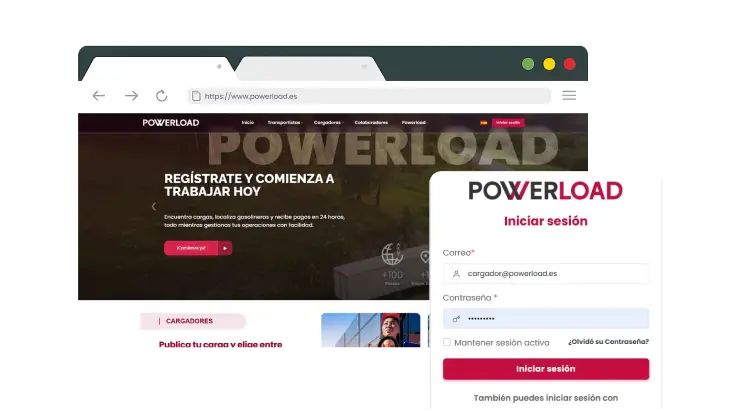
    Bullet

    Log in with your username and password at www.powerload.es

    Bottom Image
    Top Image
    2

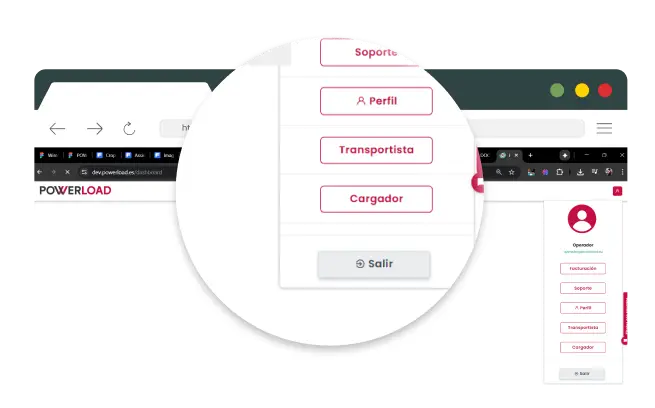
    Switch Profile to Shipper

    Bullet

    In the top menu select Profile.

    Bullet

    Click on "Shipper".

    Bottom Image
    Top Image
    3

    Create a Load

    Bullet

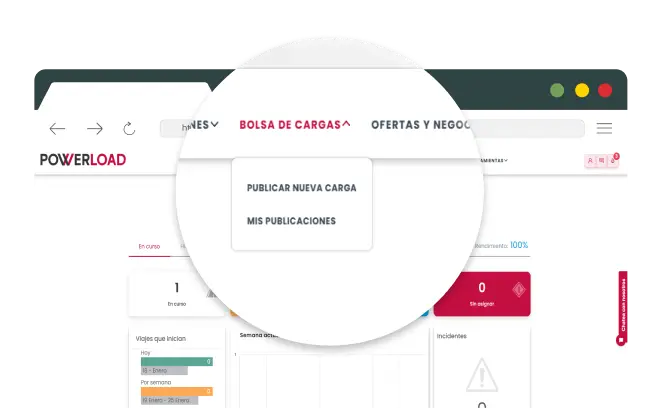
    Go to the FREIGHT BOARD menu and click on "Publish New Load"

    Bottom Image
    Top Image
    4

    Enter Load Details

    Bullet

    Fill in the required fields:

    • Type of merchandise.
    • Weight and volume.
    • Pickup and delivery location.
    • Date and time of loading.
    • Special conditions.
    Bottom Image
    Top Image
    5

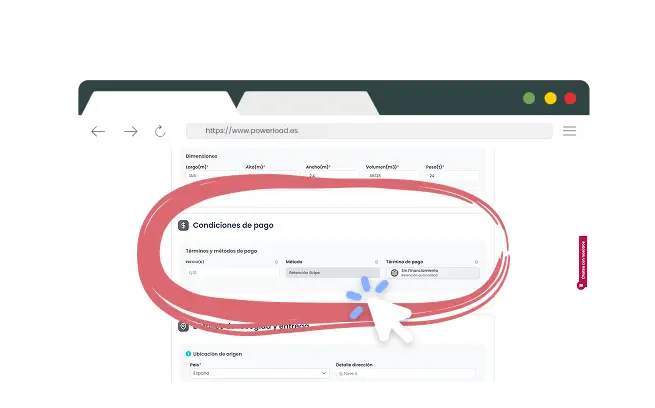
    Enter Your Payment Method

    Bullet

    Provide a valid payment method (bank transfer maximum 60 days) to pay the carrier in compliance with legal regulations.

    Bottom Image
    Top Image
    6

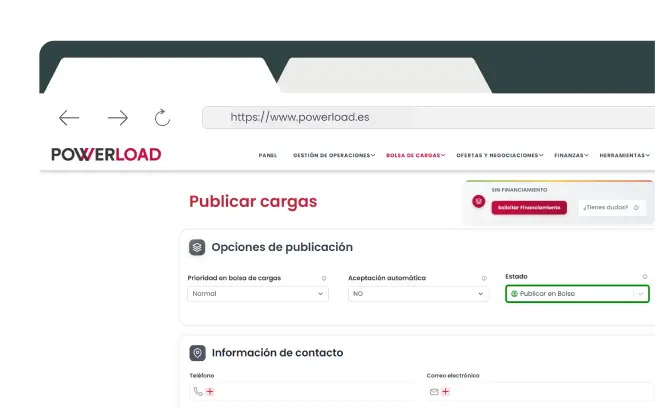
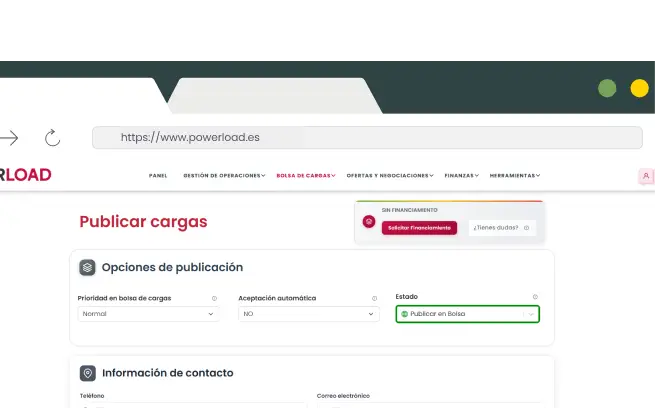
    Choose How to Publish

    Bullet

    Automatic acceptance

    • The carrier accepts and the order is generated automatically.
    Bullet

    Negotiable loads

    • Carriers send offers to negotiate conditions.
    Bullet

    Save as draft

    • Prepare and review before publishing
    Bullet

    Publish in first row (Gold Plan)

    • Maximum visibility and higher probability of quick acceptance

    Bottom Image
    Top Image
    7

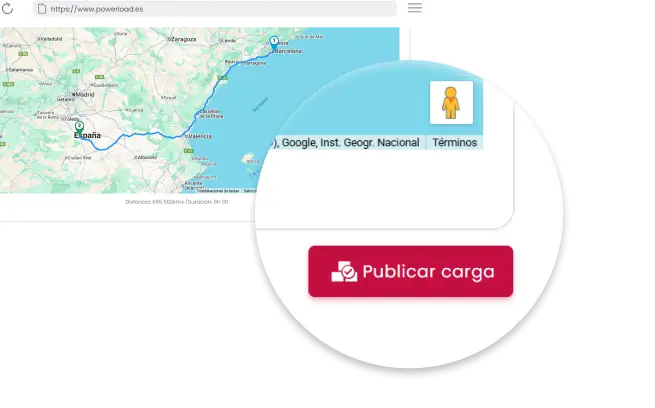
    Publish the load

    Bullet

    Review all information and press "Publish". The load will be available for carriers to accept directly or send offers to negotiate.

    Bottom Image
    Top Image
    8

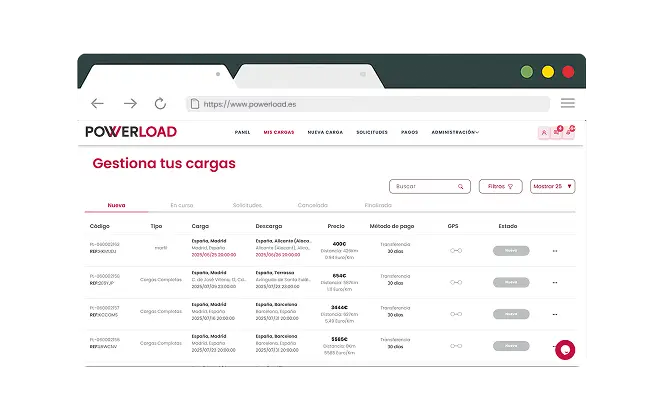
    Manage published loads

    Bullet

    Check that the load is registered in the load registry of the load management dashboard.

    Bottom Image
    Top Image
    9

    Manage your trip until completion

    Bullet

    Review information, publish, use integrated chat to coordinate, follow real-time GPS route and receive automatic invoice upon completion

    Bottom Image
    Powerload Logo
    Instagram LinkedIn Facebook YouTube
    Explore
    About Us Contact Us
    Information
    Legal Notice Privacy Policy Cookie Policy
    © 2026 POWERLOAD All rights reserved
    Discover MasterCard Visa Paypal